How to Remove Metadata from PNG & TIFF Photos Online
Professional creators, designers, and developers often choose PNG and TIFF files for their quality and transparency features. Many assume these formats are free from the sensitive metadata commonly found in JPEGs, like GPS coordinates. However, this is a common and potentially risky misconception. Both PNG and TIFF files can carry hidden information that might compromise client confidentiality or professional standards.
Are you sure your shared PNG and TIFF files are completely clean? This information could include software details, creation dates, or even author notes you thought were private.
This guide will demystify the hidden data within your PNG and TIFF images. We will show you exactly what information they can contain and provide a simple, secure, step-by-step process to remove it. A reliable online tool ensures every image you share is private, professional, and free of unintended data. Protect your work in just a few clicks and clean your images before they go public.
Understanding Metadata in PNG and TIFF Files
While JPEG files are famous for their EXIF data from cameras, PNG and TIFF formats handle metadata differently. Understanding these differences is the first step toward managing your digital privacy. These files are not empty containers; they often carry a digital footprint from their creation and editing history.
What Hidden Data Do PNGs Carry?
The Portable Network Graphics (PNG) format was designed for lossless compression on the web. It does not natively support the EXIF standard used by digital cameras. However, this doesn't mean PNGs are free of metadata. They store information in "chunks," which can include:
- Creation Time (tIME chunk): Records the last time the image was modified.
- Textual Data (tEXt, zTXt, iTXt chunks): These can hold software names (e.g., "Adobe Photoshop"), author comments, descriptions, or copyright notices. This is often where unexpected information gets embedded.
- Physical Pixel Dimensions (pHYs chunk): This data specifies the intended image resolution in pixels per meter. It can be useful for printing but is often unnecessary for web use.
Stripping these chunks ensures you only share the visual data. Nothing about the image’s origin or history will be revealed.
Exploring TIFF Metadata: More Than Just EXIF
The Tag Image File Format (TIFF) is a favorite among photographers and publishers for its high quality and flexibility. Unlike PNGs, TIFF files can hold an extensive amount of metadata, making them far more revealing. A TIFF file can contain:
- EXIF Data: If the TIFF originated from a digital camera or scanner, it can contain the full range of EXIF information—camera model, shutter speed, aperture, and even GPS location.
- IPTC Information: This is a standard often used by news organizations and professional photographers. It includes fields for the creator's name, copyright information, captions, keywords, and instructions.
- XMP Data: Developed by Adobe, Extensible Metadata Platform (XMP) is a modern standard that can store a vast amount of data, including detailed edit histories, author information, and more.
A single TIFF file can tell a detailed story about its creation. For professionals, controlling that story is essential.
Why Removing Metadata from PNGs & TIFFs is Crucial
Cleaning metadata from your images is more than just a privacy measure; it's a professional best practice. For designers, photographers, and agencies, delivering clean files protects both you and your clients. It prevents accidental leaks of sensitive information and reinforces a polished, professional brand image.
Protecting Client & Project Confidentiality
Imagine you are a graphic designer sending a draft logo concept saved as a PNG to a client. I've seen designers leak project notes this way. The file’s metadata could reveal the software version you used, internal notes, or even the name of the template file, like "Client_XYZ_Draft_V1_Internal." This information might seem harmless, but it can break the professional illusion and expose your workflow.
Photographers, watch out. A TIFF might reveal GPS from a private shoot. It could also leak your secret camera settings. Removing this data is a non-negotiable step to protect project confidentiality and client trust. Using a reliable metadata remover is an easy way to build this security into your process.
Maintaining Brand Consistency and Clean Deliverables
Every file you send represents your brand. Bloated files can be larger. They also carry digital clutter with no purpose for the end-user. Delivering a clean, lightweight file is a sign of meticulous, high-quality work.
When you remove image metadata, you ensure that the recipient only sees what you want them to see: the image itself. There are no distracting "Properties" details or hidden comments to discover. This is especially important for web developers who want to optimize every asset for performance and security. Clean deliverables reflect a clean and professional workflow.
Step-by-Step: Using Our Online Tool to Clean PNG & TIFF Images
You understand the risks. Now let’s walk through the simple fix. Removing metadata shouldn't be a complicated or time-consuming task. Our tool is designed to make this process fast, secure, and incredibly simple for everyone, regardless of technical skill.
Simple Upload & Instant Processing
We have streamlined the metadata removal process into two easy steps. There’s no software to install and no account to create. The tool is built for efficiency, allowing you to clean your images in seconds.
- Visit the Homepage: Go to MetadataRemover.org in your web browser.
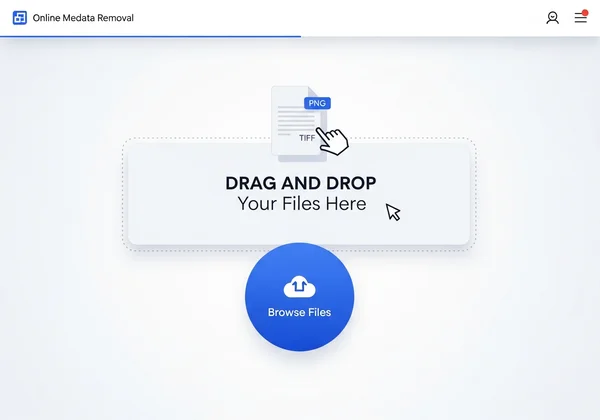
- Upload Your File: You can either drag and drop your PNG or TIFF file directly onto the upload area or click the box to select a file from your computer.
- Automatic Processing: The tool instantly analyzes and strips all metadata from the image. The process happens automatically, requiring no further action from you.
It works on PNGs, TIFFs, JPEGs, and more. One tool covers everything.
Downloading Your Cleaned PNG or TIFF File
Once the processing is complete, a "Download" button will appear. Simply click it to save the cleaned version of your image to your device. The downloaded file will be visually identical to the original but completely free of hidden metadata.
This new file is now safe to share with clients, upload to your website, or post on social media. You can be confident that you are only sharing the picture itself, with no attached private or professional data. It's the final, simple step in a secure workflow.
Verifying Metadata Removal: Ensuring Your Files Are Clean
Trust is essential, especially when it comes to privacy and professional work. While our tool is designed to be thorough, we believe in empowering our users to verify the results for themselves. Confirming that your files are clean provides peace of mind and reinforces your commitment to quality.
Tools to Check for Remaining Metadata
You don't need complex software to check for metadata. Most operating systems have built-in tools that can help you. Here’s how you can do a quick check:
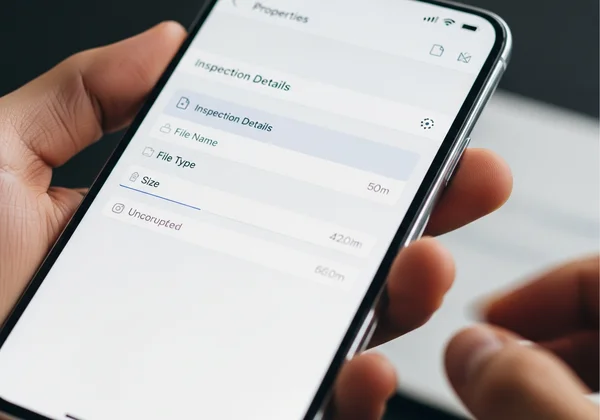
- On Windows: Right-click the downloaded file, select "Properties," and then go to the "Details" tab. A cleaned file will show most fields as blank.
- On macOS: Open the image in the Preview app, go to "Tools" in the menu bar, and select "Show Inspector." Click on the tab with an "i" icon and check the "EXIF" and "TIFF" tabs. These sections should be empty or contain minimal information.
For a more in-depth analysis, you can also use other online metadata viewers. Upload your cleaned file to one of these services to confirm that no data remains.
Why Verification Matters for Professionals
For professionals, verification isn't just about double-checking; it's about due diligence. When you are handling sensitive client assets or preparing images for legal or corporate use, you need absolute certainty.
Add verification to your routine. It shields you from lawsuits. Plus, it keeps you GDPR-compliant. It demonstrates a high level of professionalism and care. Using a trusted tool and verifying the output establishes a secure chain of custody for your assets. This simple final check completes your professional commitment to data privacy.
Secure Your Professional Image: A Final Step for Privacy
The hidden metadata in your PNG and TIFF files is a liability you don't have to accept. Removing it is a simple but powerful step to protect client confidentiality, maintain brand integrity, and ensure your professional work remains pristine.
PNGs hide text chunks from editing software. TIFFs pack in EXIF, IPTC—even full edit histories. Cleaning them keeps your privacy intact and your work pro-level. Best part? It's dead simple.
Make metadata removal a seamless part of your creative workflow. Before you send that next design draft or publish that final photograph, take a few seconds to ensure it's completely clean.
Ready to protect your work? Visit MetadataRemover.org to use our fast, free, and secure tool today.
Frequently Asked Questions About PNG & TIFF Metadata Removal
What kind of metadata can a PNG or TIFF photo contain?
A PNG file typically contains simpler metadata, such as the creation date, software information (e.g., "Adobe Photoshop"), and embedded text comments. A TIFF file can contain much more. This includes comprehensive EXIF data from a camera (shutter speed, aperture, GPS). It can also have IPTC data (creator name, copyright) and XMP data with detailed editing histories.
Is removing metadata from PNG/TIFF images different from JPEGs?
Yes, the type of data removed can be different. While JPEGs are known for camera-generated EXIF data, the focus with PNGs is often on removing software-generated text and time stamps. TIFFs can contain both types. A smart tool handles these differences. It strips everything clean. And with our simple tool, the steps stay the same for you.
Is it safe to use an online tool to remove image metadata?
It is completely safe when you choose a reputable service that prioritizes user privacy. Our online tool is built on a foundation of security. We never store or save your images. Your files are processed securely, and the cleaned version is provided for immediate download. We believe your data should always remain your own.
Does removing metadata affect the quality of my PNG or TIFF images?
No, removing metadata does not affect the visual quality of your images at all. The process only strips away the invisible, non-visual text data embedded in the file. Your image's resolution, colors, and sharpness will remain exactly the same. You get a visually identical photo that is cleaner, safer, and often slightly smaller in file size.