Email Photo Metadata: What Gets Sent?
Email feels private because you choose the recipient. The photo file itself does not become private just because it sits inside a message. If you attach the original image, hidden metadata may go with it.
That matters in ordinary situations. You might email a school volunteer photo, a client proof, a listing image, or a neighborhood event picture. The visible pixels may look harmless, but the file can still carry time, device, and location details you did not mean to share.
A safer habit is simple: inspect the file, remove what you do not need, and send the cleaned copy. For that last step, the image metadata remover gives people a quick way to strip hidden fields before a photo leaves their inbox draft.
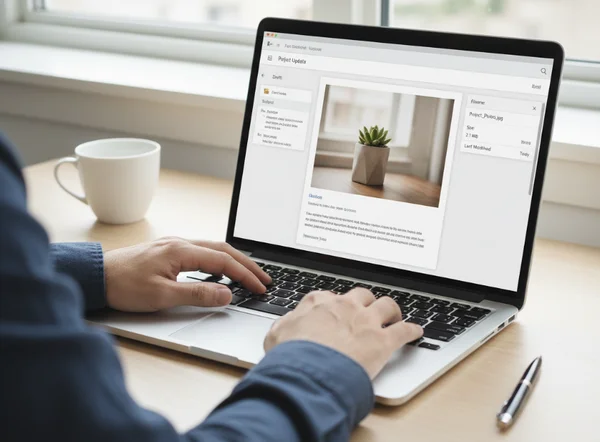
What photo metadata can stay in an email attachment
EXIF details that travel with the image file
Email usually sends the file you attach, not a magically simplified version. If the image still contains Exif data, that information can travel with it unless you create a cleaned copy first.
The Library of Congress description of Exif explains that common image files can carry structured metadata such as camera settings, date and time details, geographic data, and thumbnail storage. In plain English, that means a photo can reveal more than the scene itself.
Not every field is equally sensitive. Camera model and exposure settings may be harmless in one email and distracting in another. Date, time, and location details deserve more attention because they can add context the sender never meant to share.
Why location data matters more than most senders expect
Location data deserves its own check. A scenic photo, a school event image, or a backyard snapshot can become more specific when the file still points back to where it was taken.
The risk is not always dramatic. Most of the time, it is about oversharing routine details. A client does not need your phone's location tag to review a proof. A volunteer coordinator does not need it to organize a newsletter. A group inbox certainly does not need it if the message will be forwarded later.
Use 2 quick questions before sending any image by email: does the recipient need the original metadata, and could the message be forwarded outside the first audience? If the answer to either question is no, clean the file first.
How phone and desktop sharing options change the copy you send
iPhone and photo-app settings that remove location before sharing
The copy you send depends on the sharing path you use. The University of Michigan metadata guidance warns that emailed files can reveal creation time, geographic location, camera type, and device settings. That is more information than most recipients need. Phone sharing options deserve a quick check before you attach the image.
That detail matters because many people assume a photo attachment is already cleaned. It is safer to treat every email attachment as an original until you confirm otherwise. A 3-part pre-send routine works well: inspect the file, remove hidden fields, then attach the cleaned copy.
If you share from a phone often, build the check into your normal habit. University of Michigan also recommends checking app and device settings and notes that you may be able to reduce stored metadata by changing defaults, including smartphone geo-location tracking. Before an email leaves your outbox, confirm whether the app is sending the original information or a version with less metadata. When you are not sure, a cleaned copy from the online EXIF cleaner is the more predictable option.

Desktop options for stripping properties from a copied image
Desktop workflows create a different kind of confusion. People rename a file, drag it into a folder, or export it from a photo app and assume that small change removed the hidden fields. Sometimes it does not.
The same University of Michigan file-metadata checklist gives a practical Windows cleanup path: right-click the file, open Properties, choose Details, and select Remove Properties and Personal Information. It also points Mac users to Preview so they can inspect metadata before sending.
Even if you do not use Apple software, the rule stays the same. Do not assume that rename, copy, compress, or export means clean. Check the properties first when the photo came from a phone or camera, and remove metadata when the recipient only needs the visual content.
A pre-send checklist for client, school, and group emails
When to inspect metadata first
Inspect first when the email is part of a normal workflow. In that case, the original file may still have value. Client proofs, newsroom reference images, internal draft reviews, and family archive exchanges can fall into this category. It helps to know what is in the file before deciding what to remove.
This step is also useful when time and device details matter for your own records but not for the recipient. You may want to keep the original stored locally while sending a lighter copy by email. That gives you a cleaner handoff without destroying your own archive.
When to remove metadata right away
Remove metadata right away when the image is being shared for viewing, not for record keeping. That includes school photos, community event images, marketplace pictures, landlord or tenant updates, and casual client communications where the person only needs to see the subject.
2 situations call for immediate cleanup. The first is a photo tied to a home, child, school, or routine personal location. The second is an email that may be forwarded beyond the people you chose. In both cases, stripping hidden fields is a small step that reduces unnecessary context.
A second good trigger is volume. If you send photos often, you do not want to make a fresh judgment call every time. A repeatable workflow is easier: review metadata when needed, use the photo privacy workflow to create a cleaner copy, then attach that copy instead of the original.
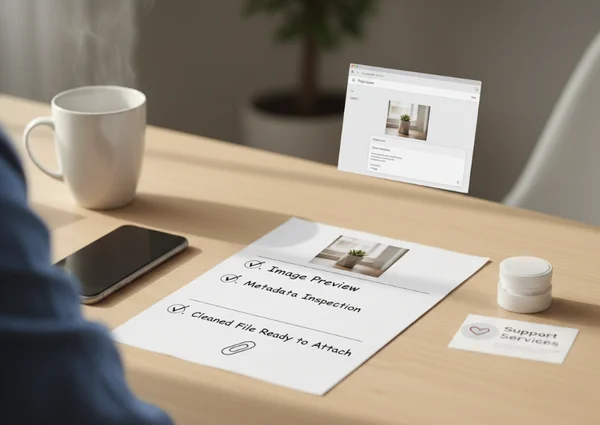
What to do next before you hit send
Email is not the same as public posting, but it is still sharing. The safest default is to assume the image file keeps whatever metadata it had until you remove it or confirm that your sharing path excludes it.
That does not mean every photo needs a high-stakes privacy response. It means you should match the file to the job. If the recipient only needs the picture itself, send the version with less hidden context.
A simple routine is enough for most people: check what the file contains, clean what the recipient does not need, and attach the right copy. When you want a quick last step before sending, the metadata removal tool fits naturally into that pre-email workflow.